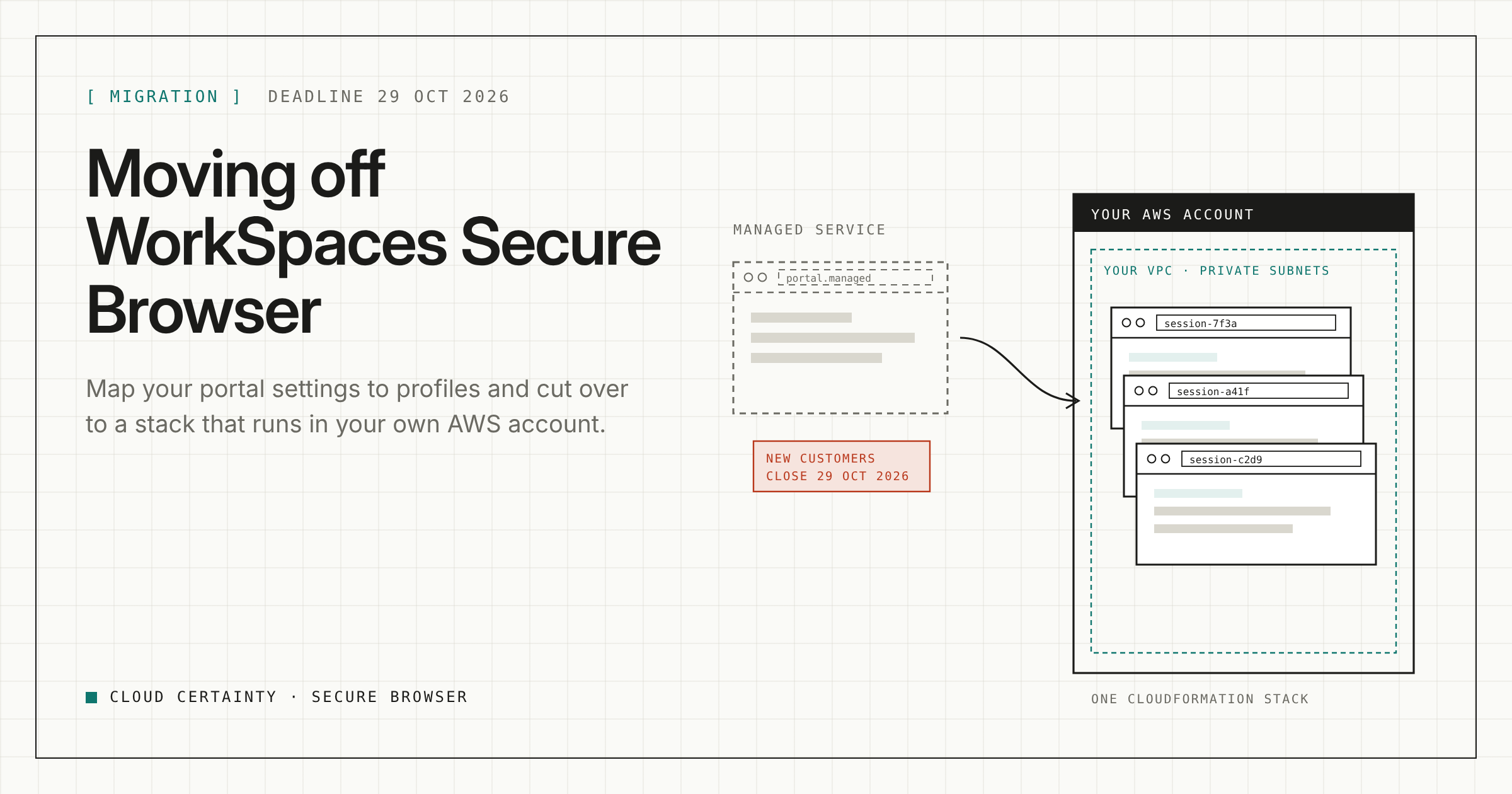
On 29 October 2026, Amazon WorkSpaces Secure Browser stops accepting new customers. If you were about to adopt it, you need another option. If you already run it, you will want a plan for what comes next, on your own timetable rather than in a hurry later.
Cloud Certainty Secure Browser follows the same model: a web portal, sign-in through your identity provider, and admin policies for what may cross between the remote browser and the user's device. The difference is where it runs. It is one CloudFormation stack in your own AWS account, in the VPC and subnets you choose, and nothing is sent to us.
This post covers how your settings carry over, what is not available yet, and a cut-over plan.
How your settings map
Most WorkSpaces Secure Browser settings have a direct equivalent.
| WorkSpaces Secure Browser | Cloud Certainty Secure Browser |
|---|---|
| Web portal with IAM Identity Center or SAML 2.0 | Portal with IAM Identity Center, any SAML 2.0 or OIDC provider, or Cognito users |
| User settings: copy, paste, upload, download, print | Profile controls, plus a maximum file size |
| Idle, disconnect and maximum session timeouts | Profile timeouts |
| Browser policy (URL filtering, bookmarks, homepage) | Profile URL filter, homepage and bookmarks, plus Chrome policy overrides |
| IP access settings | Settings → IP access |
| Network settings (VPC, subnets) | Stack parameters VpcId and TaskSubnetIds |
| User access logging | Audit log and CloudWatch Logs, plus AWS CloudTrail |
| Per-group settings | Profiles assigned per user or group, with priorities |
| Customer managed KMS key | Stack parameter KmsKeyArn |
The main idea to carry across is the policy profile. A profile holds everything that applies to a session: clipboard in each direction, file upload and download with a size limit, printing, the URL filter, homepage and bookmarks, developer tools, extensions, incognito, and the three timeouts. You assign profiles to users by email or to groups from your identity provider.
What does not carry over yet
Be clear about the gaps before you plan the move:
- Watermarking is not available yet.
- Audio, webcam and microphone are not supported.
If either is a hard requirement for a group of users, keep that group where it is for now and move the rest.
A cut-over plan
1. Take an inventory
For each portal, write down:
- the identity provider and the groups that use it;
- the user settings (copy, paste, upload, download, print);
- the timeouts;
- the URL filter, homepage and bookmarks;
- the IP access ranges;
- the VPC and subnets, and the KMS key if you use one.
This list becomes your stack parameters and your profiles.
2. Deploy the stack
Subscribe on AWS Marketplace (opens in a new tab) and choose Launch stack, or use the Terraform module cloudcertainty/secure-browser/aws. Point VpcId and TaskSubnetIds at the same network your portal uses today, so sessions can reach the same internal applications. Set KmsKeyArn if you use a customer managed key.
Sessions need outbound access on port 443 only. They accept no inbound connections, so there is no load balancer to put in front of them. If users need websites on other ports, the TaskOutboundAccess parameter opens port 80, a list of ports, or all outbound traffic.
The stack is serverless and takes about ten minutes to deploy.
3. Connect your identity provider
If you use IAM Identity Center today, add a custom SAML application for Secure Browser and update the stack once. Users get a tile in the AWS access portal and sign in with one click. Entra ID, Okta and other SAML 2.0 or OIDC providers work too, and your MFA and sign-in policies apply as before.
Grant the Admin role to at least one group as well as the first administrator from BootstrapAdminEmail.
4. Recreate your settings as profiles
Create one profile per distinct set of user settings, then map groups to profiles under Admin → Assignments. When a user is in several groups, the profile with the lowest priority number wins. A profile assigned directly to a user's email beats any group.
The stack starts with a restrictive default profile: no clipboard, no file transfer and no printing. That is a safe failure mode. Anyone you forget to assign gets a working browser with nothing crossing the boundary, rather than more access than they should have.
Finally, copy your IP ranges into Settings → IP access. The console will not save a list that locks out your own current IP.
5. Run a pilot
Pick one group, ideally one that uses the most restrictive settings, and move them first. Check the audit log as they work: session starts, refused downloads and clipboard use all show up, so you can confirm the policy behaves as you intended before anyone else moves.
6. Move everyone else and forward the logs
Move the remaining groups. Forward the audit log from Amazon CloudWatch Logs, and AWS CloudTrail, to your SIEM. Then retire the old portal.
Keeping it current
Each release is a new CloudFormation template that pins its container image, so nothing changes until you upgrade. Critical browser vulnerabilities are fixed in a new release within 72 hours of the fixed browser package being available. Upgrading is a stack update with the new template URL, and running sessions keep going while it happens.
Pricing
$0.10 per session-hour through AWS Marketplace, metered per second while a session runs, plus the AWS resources the stack uses in your account. No upfront fee and no per-user licences.
Want help?
Our fixed-price migration service maps your existing portal settings to profiles, sets up the stack and your identity provider with your team, and plans the cut-over. See the support plans (opens in a new tab), read the full admin guide mapping (opens in a new tab), or email [email protected].