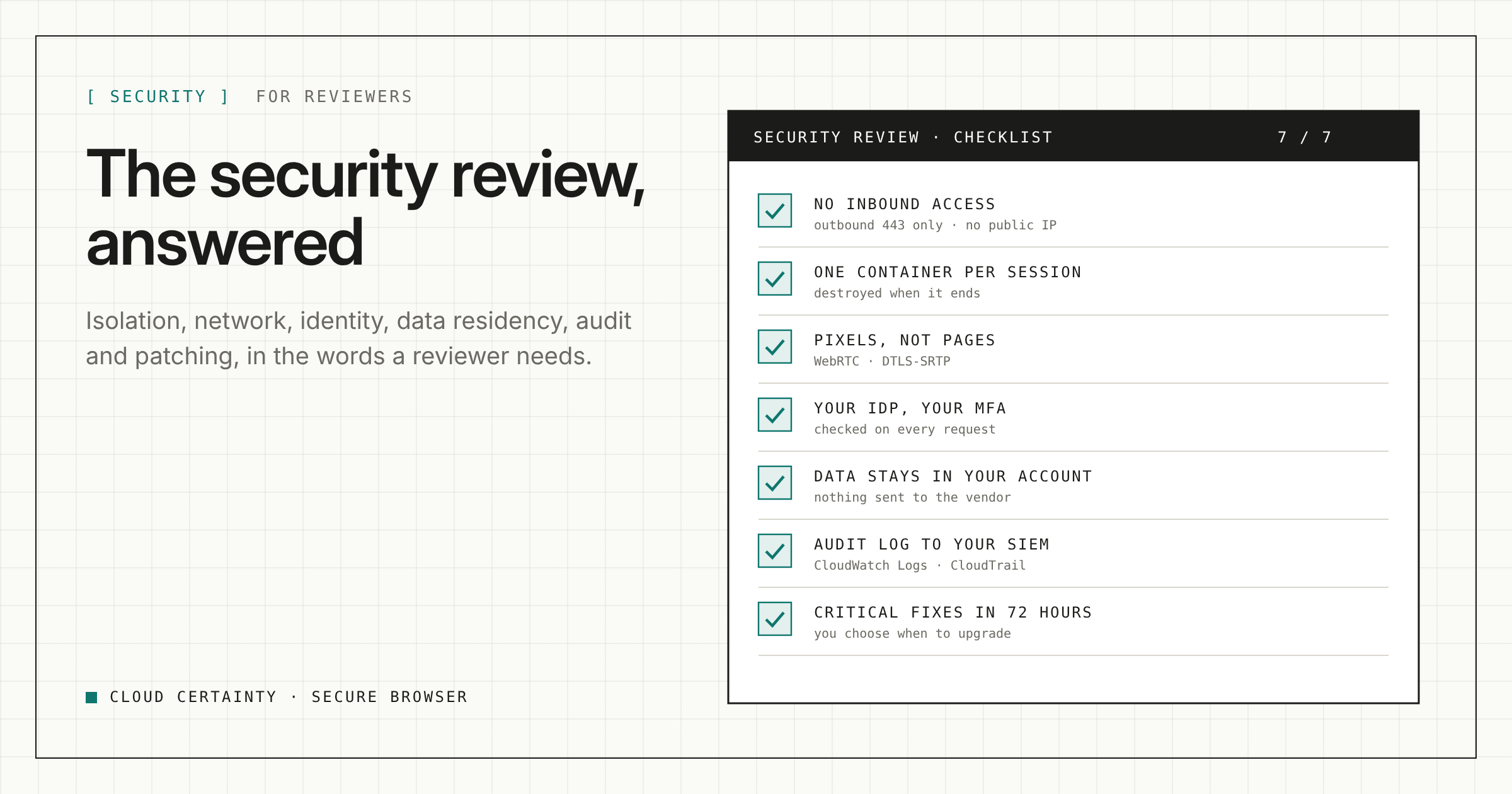
A remote browser handles your users' web traffic and sits next to your internal applications, so it deserves a proper security review. This post answers the questions reviewers ask, in the order they usually ask them. The security overview (opens in a new tab) has the same material in reference form.
Where does it run, and who can get to it?
Everything runs in your AWS account and Region. You deploy one CloudFormation stack, and sessions, browsing, user identities, settings, audit records and logs all stay there.
Cloud Certainty runs no service in the path of your sessions and has no access to your account.
What can reach a browser session over the network?
Nothing. Sessions run in your VPC and accept no inbound connections. There is no load balancer in front of them and no open port to reach them on. In private subnets they have no public IP address at all.
Sessions connect outwards only, on port 443 by default. If users need websites on other ports, the TaskOutboundAccess stack setting opens port 80, a list of ports, or all outbound traffic. That is your decision, made explicitly.
What happens to data when a session ends?
Each session is a separate, single-use container with its own isolated compute environment. It is created when the user starts a session and destroyed when the session ends, together with its pages, cookies, cache, history and files. No two users or sessions share a browser, and nothing carries over to the next one.
Sessions end when the user ends them, after an idle timeout, after a disconnect timeout (for example when the tab is closed), or at the maximum session length.
What reaches the user's device?
Pixels. Web content runs only in the container, and the device receives a video stream of the page. Malicious code on a website never reaches the endpoint.
The stream is end-to-end encrypted with WebRTC and DTLS-SRTP, and relayed through AWS-managed relay servers on port 443 that see only encrypted traffic. The portal is served over HTTPS only, with a strict content security policy.
Inside the container, JavaScript JIT and WebAssembly are off by default for extra protection against malicious websites. You can turn them on per profile for users who need sites that depend on them.
How are users authenticated?
Through your identity provider: AWS IAM Identity Center, any SAML 2.0 or OIDC provider, or users you manage in Amazon Cognito. Your existing sign-in policies and MFA apply, and Cognito users must use MFA.
Every request is authenticated. Access is granted by verified email address and group membership from your provider, so users cannot give themselves access. Admins are a separate role, granted by email or by group.
Who controls what leaves a session, and is it enforced?
Administrators, per user or group, through policy profiles:
- clipboard copy out and paste in, each direction separately;
- file upload and download, with a size limit, and printing;
- which websites are reachable, through allow and block lists;
- developer tools, extensions and incognito mode;
- idle, disconnect and maximum session timeouts;
- which networks may use the portal, through an IP allow list.
These rules are enforced inside the session, not just hidden in the user interface. Dangerous file types are always blocked, and local files are always blocked. The defaults are restrictive: no clipboard, no file transfer and no printing until you allow them.
What is logged, and what is not?
Session starts and ends, refused access, configuration changes, file transfers and clipboard use go to an audit log in your account. File transfers are recorded with name, size and a fingerprint of the content. The content of files and the clipboard text are never recorded.
The log is also written to Amazon CloudWatch Logs so you can forward it to your SIEM, and AWS CloudTrail records the AWS activity behind each session.
Is data encrypted at rest?
Yes. Settings, audit records and logs are encrypted at rest, and you can use your own customer managed AWS KMS key.
What does the vendor receive?
No customer data. Billing runs through AWS Marketplace, which tells us only how many session-hours each subscribing account used. An optional daily update check downloads a public file listing the latest release. It sends no account, stack or user information, and you can turn it off.
How quickly are browser vulnerabilities fixed?
- Critical or actively exploited browser vulnerabilities: a new release within 72 hours of the fixed browser package being available.
- Other security updates: within 14 days.
- The browser image is refreshed at least monthly.
The admin console shows a banner when a release is available, marked Security for security releases, and the stack can also notify you by email, Slack or Microsoft Teams. Releases are immutable and pin their container image, so nothing changes until you upgrade. We support the latest release and the one before it.
What is your part?
A shared model only works if both halves are done:
- Protect the first-admin account and require MFA in your identity provider.
- Use private subnets with a NAT gateway. Add DNS filtering or a network firewall if your policy requires it.
- Restrict the portal to your corporate networks with the IP allow list, if appropriate.
- Forward the audit log and CloudTrail to your SIEM.
- Upgrade promptly when a security release is announced.
Known limits
So nothing surprises you later: audio, webcam and microphone are not supported, and watermarking is not available yet.
Need more detail?
For a detailed security review under NDA, email [email protected]. The product is available on AWS Marketplace (opens in a new tab).