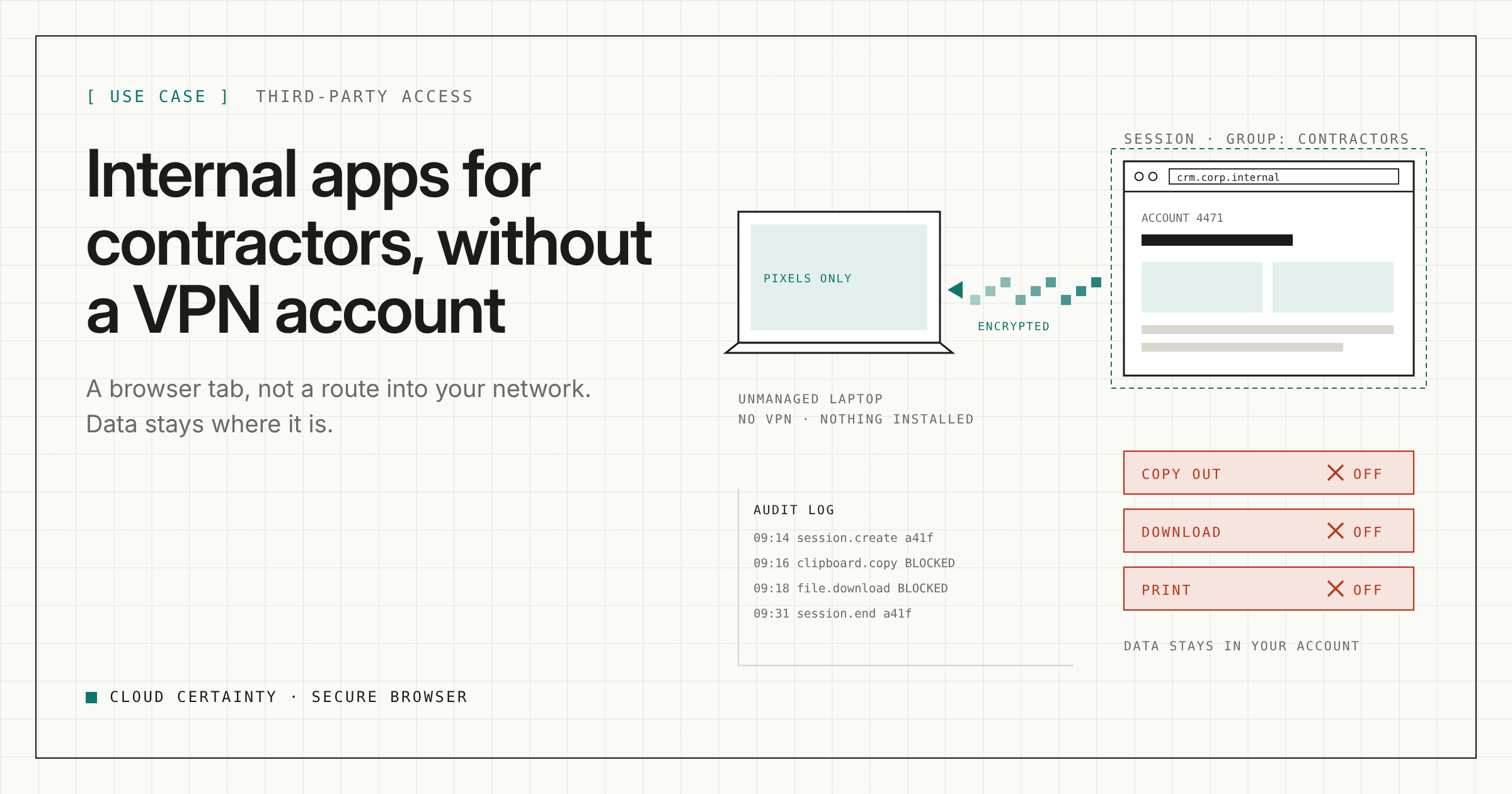
Sooner or later, someone outside the company needs one of your internal web apps. An agency needs the CMS. An outsourced support team needs the CRM. A contractor needs the wiki and the ticket system for three months.
The usual answers are heavy. A VPN account puts their device on a route into your network. A managed laptop takes weeks to ship and has to come back. A virtual desktop is a whole machine to look after when all they need is a few web pages.
Cloud Certainty Secure Browser gives them a browser tab instead.
How it works
The contractor signs in to the portal through your identity provider and starts a session. That session is a fresh Chromium browser in its own container, running in your VPC, in the subnets you choose. Because it runs there, it can reach the private applications those subnets can reach, with no VPN on the contractor's device.
What reaches the contractor's laptop is an end-to-end encrypted video stream of the page, not the page itself. Keyboard and mouse input go back the other way. Nothing is installed, and when the session ends the container is destroyed with its pages, cookies, cache and files.
The sessions accept no inbound connections. There is no load balancer and no open port, and in private subnets they have no public IP address. Outbound traffic only, on port 443 unless you open more.
Build a profile for contractors
Policies live in profiles. A profile decides what may cross between the remote browser and the user's device, which sites are reachable, and how long a session may last. These rules are enforced inside the session, not just hidden in the interface.
Here is a sensible starting point for a contractor group:
| Control | Setting | Why |
|---|---|---|
| Clipboard: copy out | Off | Text from your apps stays in the session |
| Clipboard: paste in | On | They can still paste a ticket reference or a search term |
| File upload | Off, or on with a size limit | Only if they need to attach files |
| File download | Off | Blocks downloads entirely, including Save page as |
| Off | No PDF lands on their device | |
| URL filter | Allow list, for example https://*.corp.example | Only the apps they need |
| Developer tools, extensions, incognito | Blocked | Blocking developer tools also blocks view-source: and javascript: addresses |
| Idle timeout | 15 minutes | Users get a 60-second warning first |
| Maximum session length | 8 hours | A hard stop at the end of the working day |
Two details are worth knowing. When copy out is on, copied text reaches the user's clipboard only when they click Copy remote text, so nothing leaks by accident. And allowing print does not open a general download path; it only produces a PDF.
Assign it to the group
Under Admin → Assignments, map the profile to the contractor group from your identity provider. A user's profile is chosen in this order:
- a profile assigned to the user's email;
- otherwise, of the profiles assigned to the user's groups, the one with the lowest priority number;
- otherwise, the default profile.
The default profile allows nothing until you say so: no clipboard, no file transfer, no printing. If someone ends up in the wrong group, they get less access, not more.
Under Settings, you can also set the maximum sessions per user (usually 1) and a cap on concurrent sessions across everyone.
Watch what happens
Every session start and end, every refused attempt, every file transfer and every clipboard transfer goes to the audit log in your account. File transfers are recorded with name, size and a fingerprint of the content; the content and the clipboard text are never recorded. The same events go to Amazon CloudWatch Logs, ready to forward to your SIEM.
Under Admin → Sessions, you can see every running session with its user, start time, source IP and profile, and end any of them immediately.
Off-boarding
When the engagement ends, remove the contractor from the group in your identity provider. Access is granted by verified identity and group membership and checked on every request, so there is no separate account to remember to disable and no laptop to collect. If they have a session running, end it from Admin → Sessions.
What it costs
$0.10 per session-hour through AWS Marketplace, metered per second, plus the AWS compute for the hours their sessions run. There are no per-user licences, so a contractor who logs in twice a week costs very little.
Get started
Deploy one CloudFormation stack from AWS Marketplace (opens in a new tab), or use the Terraform module cloudcertainty/secure-browser/aws. The getting started guide (opens in a new tab) walks through it, and the admin guide (opens in a new tab) covers profiles and assignments in full.