"How many load balancers do we have, across every account?" is a simple question that is surprisingly awkward to answer. You can sign in to each account, set up an aggregator and write an advanced query, or run a script with a role in every account.
If you use Control Tower, the answer is already sitting in one bucket. Control Tower turns on AWS Config in every enrolled account and sends what it records to a central S3 bucket. This post shows where those files are, what it costs to read them, and how Config Explorer turns them into one inventory.
Where the files are
Control Tower sets up a Config delivery channel in every enrolled account. Where it delivers depends on your landing zone version:
- 3.3 or earlier: the
aws-controltower-logs-*bucket in the log archive account; - 4.0 or later: the
aws-controltower-config-logs-*bucket in the AWS Config integration account, formerly the Audit account.
If you run Config without Control Tower, use whichever bucket your delivery channel points at. aws configservice describe-delivery-channels tells you.
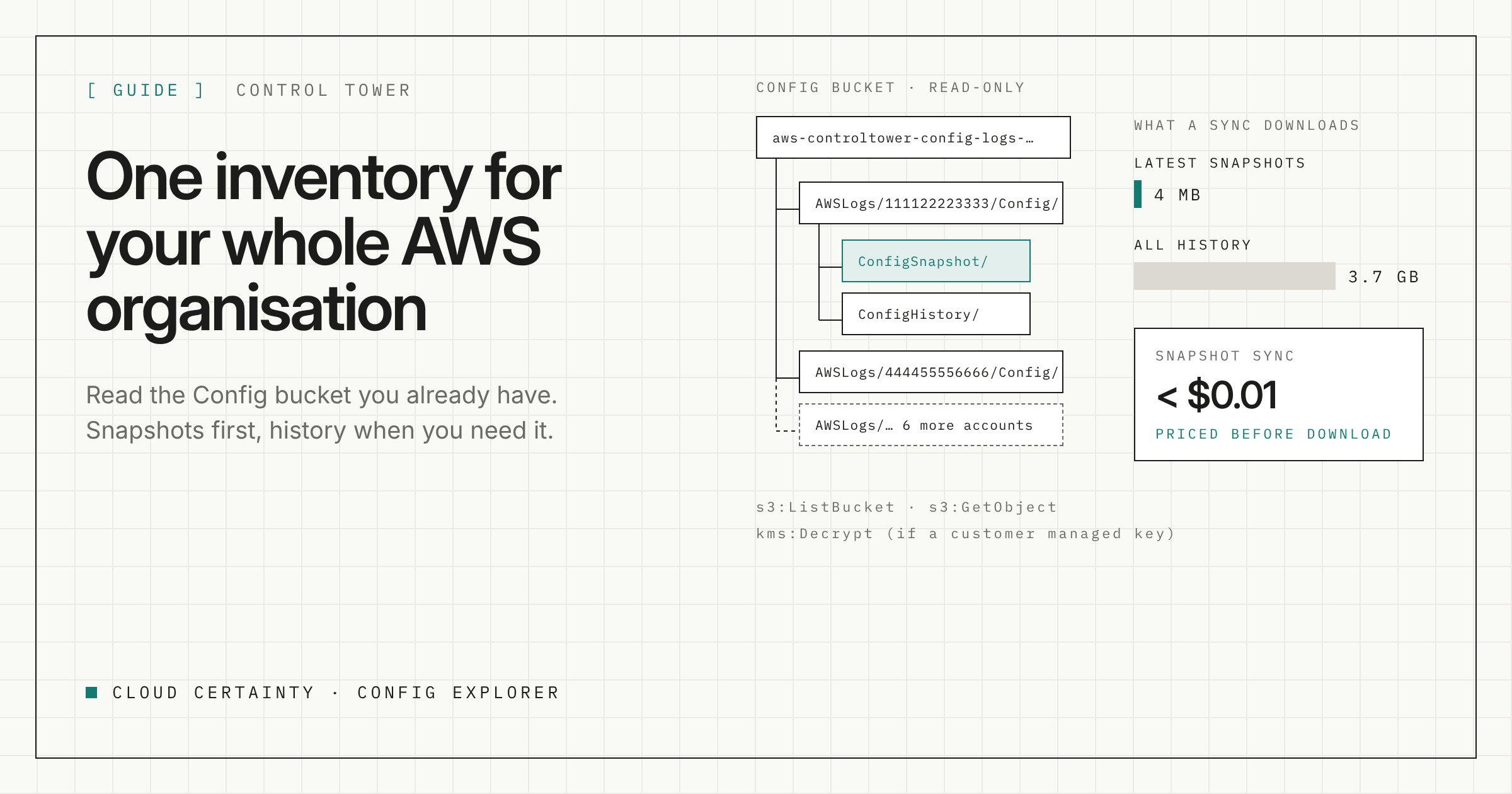
Under the bucket, Config uses the same layout for every account:
AWSLogs/<account-id>/Config/<region>/<yyyy>/<m>/<d>/ConfigSnapshot/
AWSLogs/<account-id>/Config/<region>/<yyyy>/<m>/<d>/ConfigHistory/
Config Explorer walks that tree from the prefix you give it, finds every account and Region, and names the accounts from AWS Organizations so you see names rather than twelve-digit IDs.
Snapshots first, history when you need it
The two folders hold very different amounts of data.
- Snapshots hold the full current state of every recorded resource in an account and Region. The latest one is all you need for an inventory.
- History files are delivered every six hours for each resource type that changed. Over months they add up.
In one eight-account organisation, the latest snapshots came to about 4 MB. All of the history came to 3.7 GB. So start with snapshots, which give you the full inventory for under a cent, and add history when you want to see how things changed.
Periodic snapshots are a delivery channel setting, with a frequency of 1, 3, 6, 12 or 24 hours. If describe-delivery-channels shows no configSnapshotDeliveryProperties, turn it on before you start.
What it costs to read
S3 bills the bucket owner for the requests and the data transferred. With Control Tower that is the log archive or Config integration account, not the account you sign in from.
Config Explorer prices every sync before it downloads anything: the number of files, the size, and the estimated request and transfer charges. The estimate is a worst case that assumes your free transfer allowance is already used. As a rough guide, transfer out to the internet is about $0.09 per GB in us-east-1, so even the full 3.7 GB of history above would cost around $0.33 in transfer, plus requests. Check the S3 pricing page for your Region.
Re-syncs only fetch files that have not been imported yet, so keeping the inventory current costs very little.
The permissions
Config Explorer is read-only. It needs to list the bucket and read Config's files, and to decrypt them if the bucket uses a customer managed KMS key:
{
  "Version": "2012-10-17",
  "Statement": [
    {
      "Effect": "Allow",
      "Action": "s3:ListBucket",
      "Resource": "arn:aws:s3:::YOUR-CONFIG-BUCKET"
    },
    {
      "Effect": "Allow",
      "Action": "s3:GetObject",
      "Resource": "arn:aws:s3:::YOUR-CONFIG-BUCKET/YOUR-PREFIX/*"
    },
    {
      "Effect": "Allow",
      "Action": "kms:Decrypt",
      "Resource": "arn:aws:kms:REGION:ACCOUNT:key/KEY-ID"
    }
  ]
}
Leave out the KMS statement if the bucket uses S3 managed keys. If you read the bucket from a different account, its bucket policy has to allow you too. The simplest route is usually a read-only role in the account that owns the bucket.
You can sign in with an AWS profile, an SSO session or access keys. Keys are encrypted with the operating system's keychain.
Turning it into an inventory
Once the snapshots are in, every resource in the organisation is in one table. Any field can be a filter, a grouping or a column, so the questions become clicks:
- Every load balancer, by account: filter by type, group by account.
- Untagged resources: filter where the cost centre tag is empty, group by account and type.
- What is in this VPC: group by related VPC.
- What fails our rules: filter to non-compliant, add a column for the failing rules.
Save the views you use often, and export any of them to CSV exactly as shown.
Keeping the database small
Months of history from a large organisation is a lot of data. Config Explorer can keep only recent history, or remove a source and everything it imported, and the local database shrinks to match.
Try it
Config Explorer is in early access for Windows. Tell us about your setup (opens in a new tab), how many accounts and which landing zone version, and we will send you a build and help you point it at your bucket.