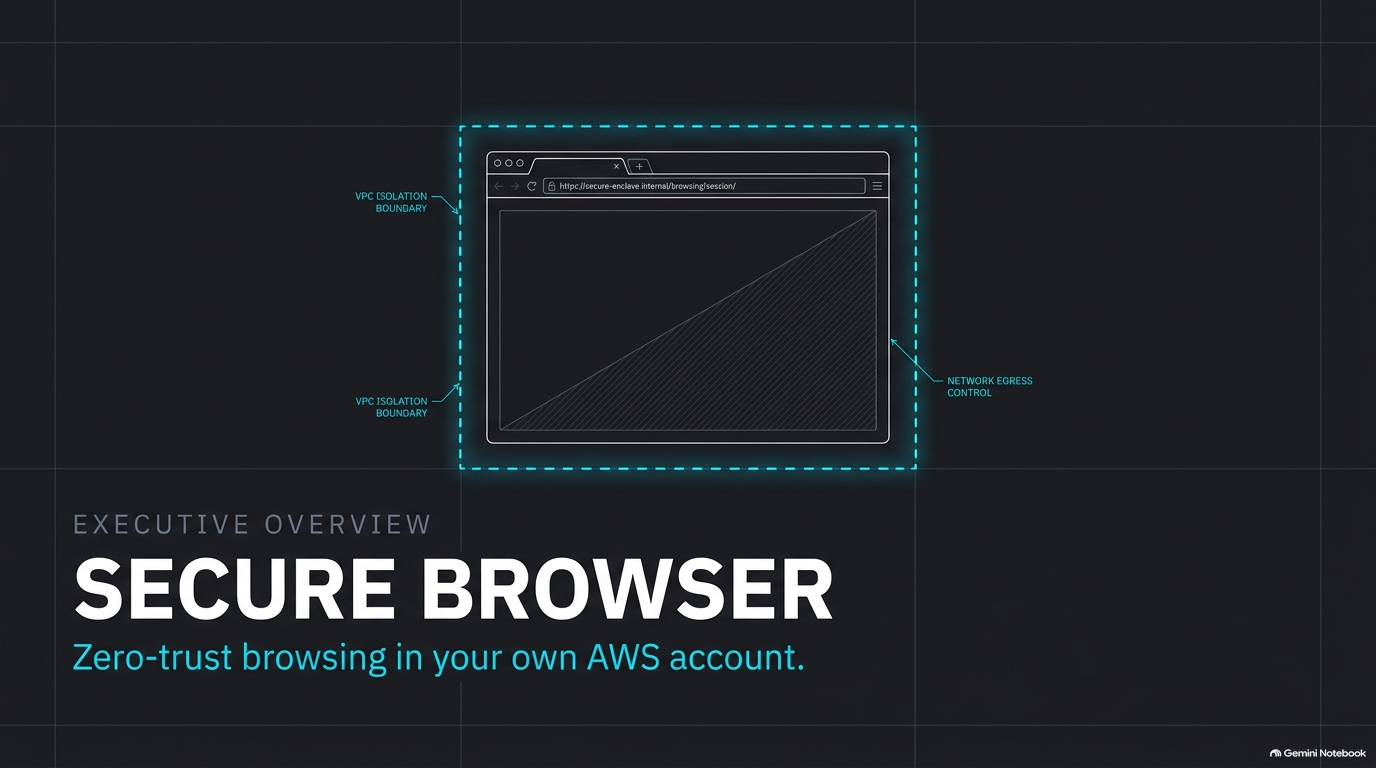
Most security incidents still start in a browser. Someone opens a link in an email, visits a compromised site, or logs into a partner portal from an unmanaged laptop. The browser runs whatever the page sends, on the device in front of the user and inside your network.
Remote browser isolation takes the browser off the device. The web page runs somewhere else, and the user sees and controls it from their own browser tab. Code from the website never reaches their machine.
We built Cloud Certainty Secure Browser to do this in the place many AWS customers want it: inside their own AWS account.
Why now
On 29 October 2026, Amazon WorkSpaces Secure Browser stops accepting new customers. Teams that were planning to adopt it need an alternative. Teams that already use it will want a plan for what comes next.
We designed Secure Browser to cover the same ground:
- a web portal, and sign-in through your own identity provider;
- policies for the clipboard, files, printing, websites and timeouts;
- an audit trail.
It runs as one CloudFormation stack you own, and you pay for it through AWS Marketplace.
How it works
- Sign in. Users open the portal and sign in with the identity provider you already use: AWS IAM Identity Center, Microsoft Entra ID, Okta, any SAML 2.0 or OIDC provider, or users you manage directly in Amazon Cognito. Your MFA and sign-in policies apply. With IAM Identity Center, users get a tile in the AWS access portal and are signed in with one click.
- Start a session. Each session is a fresh Chromium browser in its own isolated container in your VPC. It usually starts in under a minute.
- Browse. The remote browser is streamed to the user's tab as an end-to-end encrypted video stream. Keyboard and mouse input go back the other way. The website runs in the container, never on the device.
- End. When the user ends the session, goes idle, or reaches the time limit, the container is destroyed with everything in it: pages, cookies, cache and files. The next session starts clean.
Zero trust by construction
- No inbound access. Browser sessions accept no inbound connections. There is no load balancer and no open port, and in private subnets there is no public IP address. Sessions only connect outwards, on port 443 by default. If your users need websites on other ports, one stack setting opens port 80, a list of ports you choose, or all outbound traffic.
- One container per session. Users never share a browser, and nothing carries over from one session to the next.
- Pixels, not pages. The user's device receives encrypted video. Malicious code on a website stays in a container that is thrown away.
- Identity on every request. Every API call is checked against the signed-in user. Roles and policies follow the user's verified email from your identity provider.
- Your account, your data. Sessions, settings, audit records and logs never leave your AWS account. Nothing is sent to Cloud Certainty. The only outbound call the stack makes to us is a daily check for new releases, and you can turn it off.
What administrators control
Policies are grouped into profiles. You assign profiles to individual users, or to groups from your identity provider. A profile decides what may cross between the remote browser and the user's device:
- Clipboard. Copying out and pasting in are allowed separately. Copied text reaches the user's clipboard only when they click Copy remote text.
- Files. Upload and download are each on or off, with a size limit. Dangerous file types are always blocked.
- Printing. Printing produces a PDF on the user's device without opening a general download path.
- Websites. Allow lists or block lists, a home page and bookmarks. Developer tools, extensions and incognito windows can each be allowed or blocked.
- Timeouts. Idle and disconnect timeouts and a maximum session length. Users get a warning before an idle session ends.
At the stack level, you can limit the portal to your office or VPN IP ranges, cap the number of concurrent sessions, and choose the outbound ports. Administrators can see every active session and end any of them.
Every session, refused attempt, file transfer, clipboard copy and configuration change goes to the audit log. It is in the admin console and in Amazon CloudWatch Logs in your account, ready to forward to your SIEM.
Getting started
You can go from nothing to a first session in about 30 minutes:
- Subscribe on AWS Marketplace (opens in a new tab). There is no upfront fee.
- Choose Launch stack. CloudFormation opens with the template already selected. Pick your VPC and subnets, your identity provider and your first administrator's email. If you manage infrastructure as code, use the Terraform module
cloudcertainty/secure-browser/awsinstead. - Connect your identity provider. For IAM Identity Center this is a custom SAML application and one stack update.
- Sign in and start a session.
The getting started guide (opens in a new tab) walks through every step with screenshots, from the Marketplace page to the first session.
Pricing
$0.10 per session-hour, billed through AWS Marketplace on your normal AWS bill. Billing is per second while a session runs, with a one-minute minimum. When nobody is using it, there is no Secure Browser charge.
You also pay for the AWS resources the stack uses in your account. That is mostly the session's container time while it runs; the serverless control plane costs very little when idle.
Staying up to date
Each release is a new CloudFormation template that pins its container image by digest, so nothing changes until you choose to upgrade. When a new release is out, the admin console shows a banner, marked Security for security fixes. The stack can also notify you by email, Slack or Microsoft Teams. Upgrading is a stack update with the new template URL, and running sessions keep going while it happens.
We fix critical browser vulnerabilities in a new release within 72 hours of a fix being available.
Try it
- Product page: cloudcertainty.com/secure-browser (opens in a new tab)
- Documentation: cloudcertainty.com/secure-browser/docs (opens in a new tab)
- AWS Marketplace: Cloud Certainty Secure Browser (opens in a new tab)
Migrating from Amazon WorkSpaces Secure Browser, or need help with a deployment? Email [email protected].